

Databases
The Infrastructure › Databases screen is used to display a list of all Databases residing on instances that have been added to WISdom for collection. Database information is displayed in a table format with sortable columns in the Databases section. You can quickly see how many copies of a database you have and where they live. Find the databases that cost the most, the ones that have not been accessed in months, and how fast each one is growing.
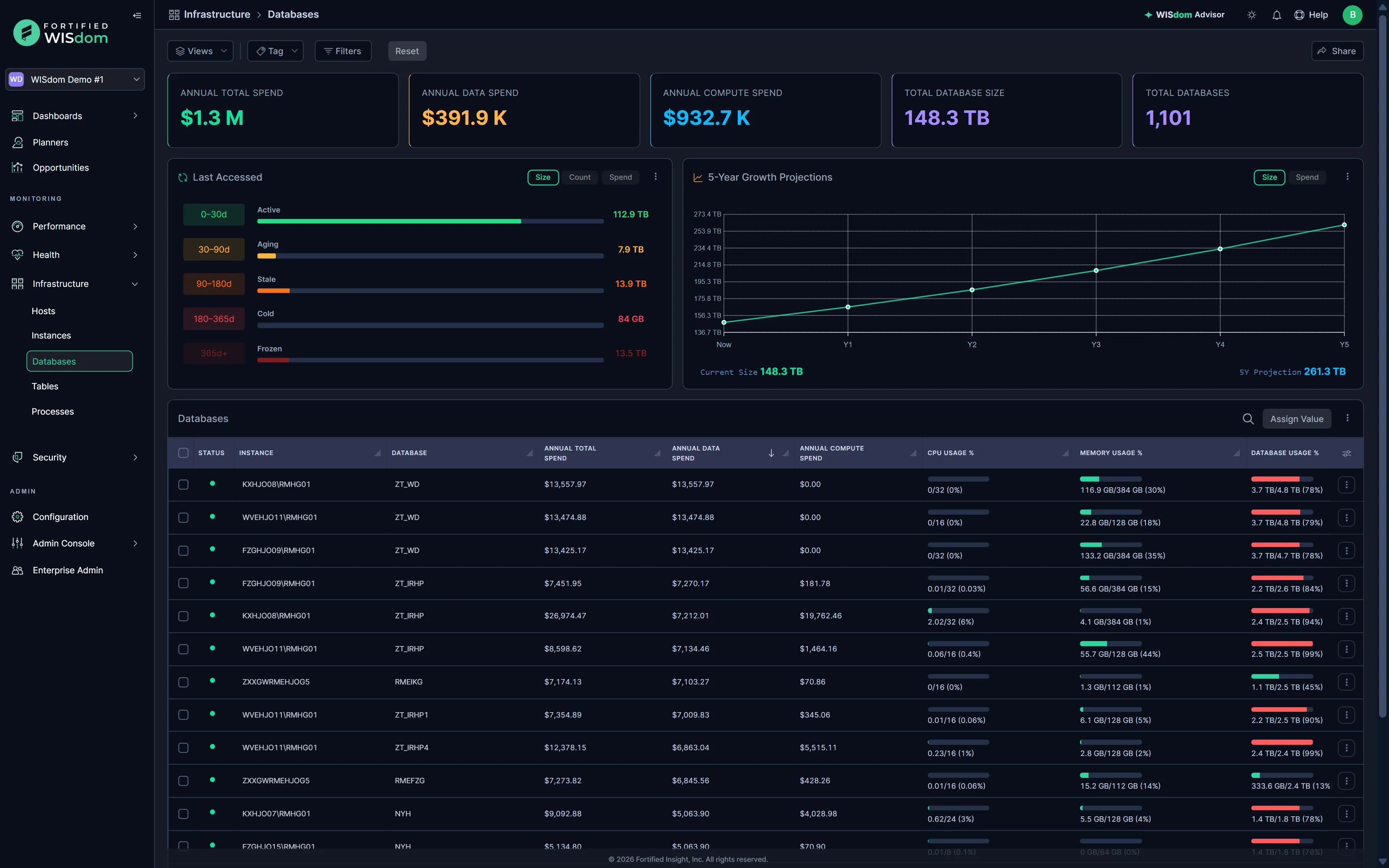
The screen can be modified by selecting a View and applying it, or by using the Tag or Filters drop-downs. Select Apply to apply your selections or Cancel to discard them, and select Reset to clear all active filters.
The Tag drop-down includes the system-generated tags that apply to the page and any custom tags you have created, such as an Application tag. The system-generated tags are [Environment], Auto-Discovered Resource, Availability Group, Collection Status, Is System Database, Listener Name, and Top 10% Instances. [Environment] tags may be edited on the Tags page in the Admin Console, if your WISdom account has the appropriate permissions. The other system-generated tags cannot be edited.
The Filters drop-down offers Instance, Database, Compatibility Level, Recovery Model, Last Access, and Database Size.
The Search area (magnifying glass in the upper right corner of the screen) provides the ability to search for a string or name, further limiting the Databases displayed in the Databases table.
Select a database row to open Tables. This is the same as selecting View Tables from the row-level action icon. The instance filter is kept and the database name is added as a filter.
To choose which columns are displayed, select the column chooser icon in the upper-right corner of the table and toggle columns on or off. Your selections are kept in your browser cache and persist until the cache is flushed. To export the data, use Export from the action icon (three vertical dots) in the table’s header row. Export creates an Excel file with all available columns, regardless of which columns are displayed. It does not ignore filters: only the data that matches the filters currently applied is exported.
Databases
Section titled “Databases”The Databases table lists the databases on the instances that have been added to WISdom for monitoring, in sortable columns. Columns marked Default in the table below are displayed until you change them with the column chooser.
Spend depends on host information. WISdom applies cost to a resource using the host it runs on, so a cost can only be calculated when host information has been collected. Without host information, or without cloud cost information where it applies, spend may not display. You may see $0 amounts or charts with no data. See Cost Management for how costs are defined.
Columns
Section titled “Columns”| Column | Default | Description |
|---|---|---|
| Status | Yes | The current status of the database. |
| Instance | Yes | The host and instance name where the database resides. |
| Database | Yes | The name of the database. |
| Annual Total Spend | Yes | The total annual spend for the database. |
| Annual Data Spend | Yes | The estimated or customized annual cost of data for the database. |
| Annual Compute Spend | Yes | The annual cost of the CPU cycles consumed by the database. |
| CPU Usage % | Yes | CPU usage attributed to the database, as a percentage. |
| Memory Usage % | Yes | Memory usage attributed to the database, as a percentage. |
| Database Usage % | Yes | Usage of the database, as a percentage. |
| IO Throughput | Yes | The IO throughput attributed to the database. |
| Trans/sec | Yes | The transactions per second on the database. |
| Created | Yes | The date the database was created. |
| First Seen | Yes | The date WISdom first observed the database. |
| Last Accessed | Yes | The last date and time the database was accessed. This is based on the index stats data collected weekly. It will not populate right away and may take as long as 7 days to show valid data, depending on the collection schedule. |
| Last Access Category | Yes | The access tier of the database: Active, Aging, Stale, Cold, or Frozen. |
| Last full backup | No | The date of the last full backup. |
| Last diff backup | No | The date of the last differential backup. |
| Last log backup | No | The date of the last log backup. |
| Last integrity Check | No | The date of the last integrity check. |
| Used Size | No | The size of the database that is in use. |
| Free Size | No | The size of the database that is free. |
| Annual Growth | No | The annual growth of the database. |
| Tables | No | The number of tables in the database. |
| Database Files | No | The files that make up the database. |
| Compatibility Level | No | The configured SQL Server compatibility mode associated with the database. |
| Recovery Model | No | The recovery model of the database. |
| Availability Groups Enabled | No | Whether the database is in an Availability Group. |
| CDC Enabled | No | Whether change data capture is enabled for the database. |
| Collation | No | The collation of the database. |
| Log Shipping Enabled | No | Whether log shipping is enabled for the database. |
| RCSI Enabled | No | Whether read committed snapshot isolation (RCSI) is enabled for the database. |
| Replication Types | No | The replication types configured for the database. |
| TDE Enabled | No | Whether transparent data encryption (TDE) is enabled for the database. |
| Tags | Yes | The tags associated with the database. |
Row actions
Section titled “Row actions”Select the row-level action icon (three vertical dots at the end of a row) for more options:
- Edit - Manage the tags associated with the database. Edit only manages tags. See Assign value / edit below.
- View Tables - Open Tables with the instance filter kept and the database applied as a filter. Selecting the row does the same.
Assign value / edit
Section titled “Assign value / edit”The only information you can edit on this page is Tags, as database collection is inherited from the instance level.
To edit a single database, select the Three-Dot icon at the end of the row and select the Edit button. A flyout will appear with the option to edit the Tag(s) associated with the database. To edit Tags for more than one database at a time, check the boxes in front of the database names, then select the Assign Value button at the top-right.