Every WISdom user can update their own account information from the Edit Profile flyout. Administrators can manage their own profile the same way, and can manage other users' profiles from the Admin Console › Team page.
Opening Edit Profile
Click your colored user initial in the top-right corner of WISdom, then select Edit Profile.
Edit Profile
The Edit Profile flyout has two tabs:
| Tab | What it does |
|---|---|
| Info | Update your name and contact details. |
| Password | No longer functional. See Managing Your Password below. |
Info
The Info tab lets you update your user details.
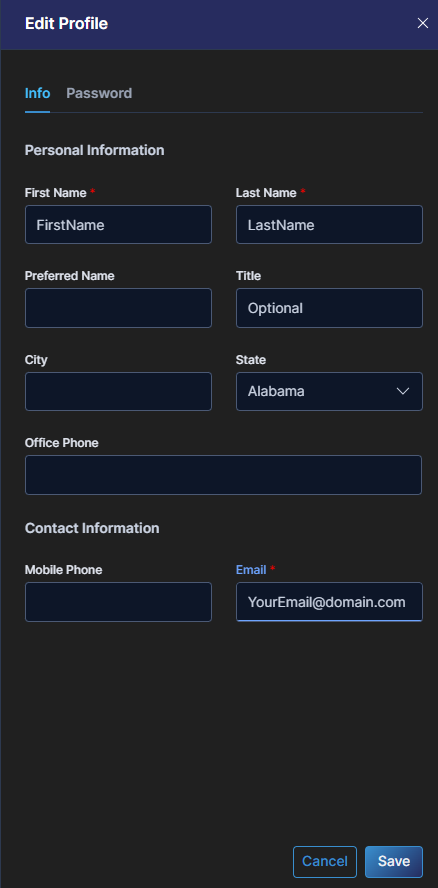
Required fields:
- First Name
- Last Name
Optional fields:
- Preferred Name
- Title
- City
- State
- Office Phone
- Mobile Phone
Only First Name and Last Name are used elsewhere in WISdom. The remaining optional fields are stored on your profile but are not currently displayed anywhere else in the application.
Editing the Email field on this page will not change the email address your account uses to sign in. Your account email cannot be updated directly.
To change the email associated with your account:
- Ask an administrator to create a new account with the new email address from Admin Console › Team.
- Delete the old account from the same page.
Nothing in WISdom is tied to the old email address, so the change is a clean swap.
Managing Your Password
Password Page Deprecated
The Password tab inside the Edit Profile flyout is no longer functional and will be removed in a future release. Anything entered on that tab will not update your password.
To reset or change your password, use one of the options below.
If You Sign In with SSO
Follow your organization's standard password reset process. WISdom does not manage SSO passwords.
If You Sign In Directly to WISdom
- Go to the Fortified WISdom login page.
- Enter your email address and click Sign In.
- On the next screen, click the Don't remember your password? link at the bottom of the dialog.
- Submit your email address. A password reset link will be sent to that address.
Passwords must be at least 8 characters long and include:
- An uppercase letter
- A lowercase letter
- A number
- A special character
Multi-Factor Authentication (MFA)
If you sign in directly to WISdom (not SSO) and need to set up a new MFA device or reset an existing one, you have two options:
- Ask a WISdom administrator to deactivate and then reactivate your account, or
- Email the WISdom Support team and ask them to reset your account.
After the reset, you'll receive an email with a link to create a new password. The first time you sign in after the reset, WISdom will walk you through MFA setup and display a QR code to scan with your authenticator app.
If your organization uses SSO, MFA is managed through your identity provider. Contact your IT team for help with authenticator resets.